Showing posts with label Google Slides. Show all posts

Monday, April 7, 2025

Seven Accessibility Tools

Assistive technology is transforming the way we read, write, and engage with content. Whether you're a student, educator, or someone looking for accessibility support, there are many beneficial tools designed to make digital communication more inclusive. Let’s get into some examples of these incredible tools:

Google Docs - Voice Typing

Voice Typing in Google Docs is a hands-free writing tool that is perfect for anyone who finds typing challenging or simply wants to capture ideas quickly. This tool is very easy to use and is available right in a Google document. Just go to the “Tools” tab and select “Voice Typing.” A microphone will appear and users can just click on the icon when they are ready to use and click again to stop the voice typing.

Microsoft - Immersive Reader

Microsoft’s Immersive Reader is a built-in feature in Microsoft Edge and across many Microsoft 365 apps, designed to make reading easier for everyone. It offers adjustable text size, spacing, background colors, read-aloud features, and grammar tools. In the classroom, it’s a great resource for teachers to personalize support for students learning to read. Immersive Reader makes text more accessible, guided, and user-friendly for all kinds of learners.

Screen Readers

For individuals with visual impairments, screen readers are essential. These tools convert text on a screen into speech or Braille, allowing users to navigate websites, read documents, and interact with content independently. Some of the most widely used screen readers include JAWS, Dolphin ScreenReader, Microsoft Narrator, and NVDA for Windows. There are also tools like Orca, TalkBack (Android), and ZoomText for other platforms and needs. Screen readers help make sure everyone has equal access to digital spaces.

C-Pen Reader

The C-Pen Reader is a tool that helps to improve reading skills, aid comprehension, and promote independence for individuals with difficulty reading or who may be learning a new language. The C-Pen Reader is an easy, pocket-sized tool that scans words and reads them aloud, using text-to-speech technology. 

Google Slides - Speaker Notes and Live Captions

Google Slides presents a tool for speaker notes and caption features to help individuals expand their presentations while also benefiting others who are viewing the presentation. The speaker notes section helps presenters stay on track, while the live captions feature displays spoken words in real-time on the screen. This can be a game changer for those with hearing impairments, language learners, or anyone sitting in the back of the room. Speaker notes and live captions is all about making presentations more accessible and engaging.

Microsoft Windows - Color Filters

Although color filters are often associated with photography, they have another important role with accessibility. For individuals who are color-blind or have difficulty focusing on on-screen text, changing color contrast or applying filters can dramatically imp
rove one’s ability to read. Adjusting these settings can make text pop, reduce eye strain, and help maintain concentration. It’s a small tweak that can make a big impact.

Google Meet - Transcripts

Transcripts in Google Meet allows participants to review and edit meeting dialogue in written form. This is beneficial for referencing key points, creating meeting minutes, and keeping everyone on the same page. Transcripts also helps people of another language to receive the meeting dialogue in the language they know best. For example, the meeting transcripts are available in English, French, German, Italian, Japanese, Korean, Portuguese, and Spanish. 


Sunday, March 30, 2025

Exploring Google Maps by Using a HyperDoc


Traditional geography lessons can feel a bit dull, but HyperDocs bring them to life. I explored a HyperDoc for Google Maps in the form of a slide deck that makes learning both fun and more engaging than ever.

Instead of just reading about maps, students interact with them by zooming in, exploring Street View, and even traveling back in time. The lesson starts with a simple challenge of finding your school on Google Maps. From there, students zoom in, explore, and observe details they may not have noticed before.

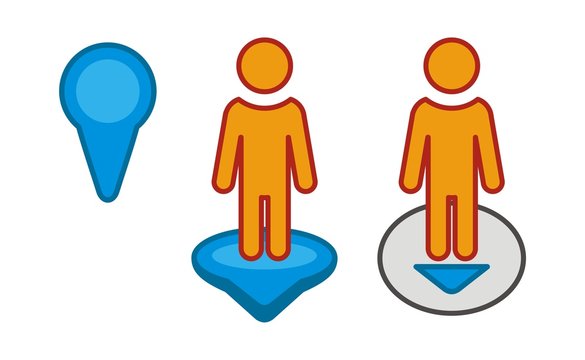
One of the most unique parts of this is the inclusion of pegman, the little yellow figure that unlocks Street View. Dragging pegman onto the map lets students take a virtual walk around their neighborhood, seeing familiar places from a whole new perspective. This inclusion allows for a much more interactive experience for the students when using the map.

The HyperDoc also introduces Google Maps’ timeline tool, allowing students to view how places have changed over time. This sparks discussions about urban development, history, and environmental change through an interactive experience where students can work at their own pace.

What makes this HyperDoc so effective is its ability to turn students into active learners. Instead of passively memorizing facts, they explore and discover for themselves. Geography isn’t just something they read about in a textbook, it is something that they experience.


Friday, March 28, 2025

Google slides as a Hyperdoc

In the United States, we love google and google software. The rest of the world prefers microsoft. That is not of particular importance however. It is only noteworthy because google will likely be the software of classrooms in America. For that reason it is important for K-12 educators to understand google software. Google slides do not have to be just words on a screen used for lecture, google slides can be so much more. I found a "beginners guide" to hyperdocs and found it to be a nice thorough enough video that showcases, in a beginners fashion, some capabilities of hyperdocs via google slides. 
As I noted previously, the world uses Microsoft, whereas America uses Google, and while I personally think that Microsoft has a significant gap between them and other software, Google slides are by no means bad. I think that Google slides are a nice, friendly on the eyes software, that, while it may not possess ALL of the capabilities of PowerPoint, it still very much can hold its own as a suitable program for educational settings. On the whole, Google Slides is very similar to PowerPoint, but Google owned programs flow better through Slides. That means that educators can connect Google Docs, Google Sheets, even Google Maps to their Slides, among other tools, and the classroom can access it all through the sole Google Slides. This can streamline a lesson and make it significantly easier for students to access a multitude of links, sites, etc. Using Slides as a hyperdoc also creates a centralized base for all essential links, sources, and embedded tools. 
Since hyperdocs are interactive, it will be much more engaging for the students because it isn't a boring lecture. They are enabled to click around, explore a little, and that can help stimulate their learning and consequently, their understanding. Speaking of understanding, educators have to understand hyperdocs as well, and there are many online resources where educators can get some inspiration. While this site, may not be exclusive to Google slides, it offers templates and ideas for hyperdocs. There is a paid subscription to access ALL of the sites resources, but there is a free option that allows for usage. Overall, hyperdocs via google slides can elevate a lesson. It can help students stay engaged and promote further understanding and learning if done right. In order to do it right, educators have to learn the program they wish to use, or find templates or learning opportunities for themselves.