Showing posts with label Educational Technology. Show all posts

Monday, April 21, 2025

Veative - Virtual Reality

 Education is constantly expanding due to the incredible benefits of technology. Virtual reality use in classrooms is becoming more popular due to its ability to create interactive and immersive learning experiences. Virtual reality enhances student learning, understanding, and retention. VR can be used in classrooms to simulate real-world scenarios, like science experiments, field trips, or just exploring the world. This provides students with opportunities to learn in ways that are not possible to do in traditional classrooms. 


One virtual reality company I had researched was Veative. Veative provides immersive learning solutions using virtual reality technology for schools and educational programs. Their VR programs come with easy-to-use online classroom and content management systems. With the systems, teachers can view module content for lesson planning, provide VR content modules at the same time and on all students headsets. Teachers can pause or stop the module at any time and monitor in real time what students are seeing. 


Veative’s virtual reality learning experience comprises t
he world’s largest library of curriculum-aligned AR/VR modules for STEM, ELL, and virtual tours. The immersive knowledge resources offered include, K-12 STEM, history and culture, language learning, and higher education. 


Virtual reality programs like the ones provided by Veative, fully immerses students by completely focusing and learning topics. When experiencing lessons in this way, students are able to create clear and detailed mental visions, helping to improve knowledge retention. 


Nearpod: Global Collaboration opportunities

Nearpod is a digital lesson library. There are countless lessons and available activities on this site. You may ask yourself, why does that matter even in the slightest? Well.. By having such a large selection of resources, Nearpod has boundless opportunities via countless means. Many of those opportunities can contribute to global collaboration, as there are lessons from across the world available on Nearpod by which classrooms can gain a global consciousness. There are also many lessons with VR or AR capabilities where students can utilize modern technologies. 

As a global tool, Nearpod is used all over the world. Because of this, the opportunities are vast for, say, classrooms in America to be granted exposure to classrooms all over the world. Not just the students, but educators as well can benefit from the global presence that Nearpod has access to. Educators in 160+ countries use Nearpod. For educators, exposure to educators from all over the globe can lead to inspiration and the ability to craft new lessons for their classrooms!

Returning to the ideas of global collaboration...
Through Nearpod, classrooms in non-affected areas can learn about issues in affected areas. That probably sounds vague and makes no sense, so here is an example: The conflict in Kashmir is not happening in the United States, and thus, may go relatively unknown to students. Nearpod has lessons on this conflict however, and from this, students can gain an understanding of global events. Through their understanding, students, working on goals projects or any project in general, can address the issues, working alongside their peers and potentially governments to try and make a powerful statement on topics all over the world. 
Students can work together, with their classmates on projects, but that isn't all that much GLOBAL collaboration is it? Nearpod has collaboration activities, where students can collaborate, similar to a padlet or a jamboard. This next part is solely on the educators to make possible. Collaboration is possible across borders, continents, and oceans. The only prerequisite is that educators from across the world will have to connect first. Should they connect, they can bring their classrooms together and have their students work alongside each other, despite any distance between them! Through this collaboration, issues such as the Kashmir conflict can be discussed by students of many nations(if their teachers connect first that is!). Should there be a connection between classrooms, those global goals projects I mentioned earlier can be worked on by students who simultaneously on opposite sides of the planet! Those projects would be so interesting, as the collaboration between different nations students could yield great results. 


Sunday, April 13, 2025

WE Virtual Learning Center: The Future Of My Classroom

     All throughout the semester, it has been a great learning opportunity to understand and engage with online web tools. As we come to a close for this semester, I explore one last reflection, and ultimately provide my audience with tools I will be using in my future classroom. 

    WE Virtual Learning Center, is a website dedicated to providing resources for not only students, but educators as well. Throughout my discovery of this website, I found something called We Virtual
Workshops
. On this tab of the website, it provides videos which are labeled as workshops. These videos go in depth about lessons, and even connect students to others around the world, with something called Global Classrooms

When explaining major subjects, these videos/virtual workshops will come in handy within the classroom. They are fun, interactive, and engaging all at once, which will be perfect to incorporate into lessons.     Overall, I love this website, and I will be exploring it further and using other tools provided as well.


Harbringers of positive, communal change


Following the conclusion of this semester, the Spring 2025 semester, I will officially be closer to entering the classroom as an educator than I was leaving the classroom the last time as a student(K-12). With that in mind, it is important to begin formulating how exactly one will go about leading their classroom! Those formulations should be things that future educators are excited about, things that will immediately bring value to the classroom. 

I did some digging around the WE.org site, and eventually came across the service-learning student toolkit. This toolkit revolves around, well, service learning! As I read through this toolkit, I saw that the examples of success stories working with a service-learning oriented approach were younger students. I will be a high school teacher, so ages 15-18. My thinking process leads me to believe that service learning is better suited for that age group. These students are entering either college or the workforce, part-time or full time, and the skills that can be gained from this learning style can greatly aid in the endeavors, both future or current, for high school students. Skills like those listed below are very important to have whether or not a student goes to college or the workforce. 
Should I be able to find ways to engage my students into a service-learning environment, I can set them up to cultivate vital traits that will greatly benefit their futures. As an educator, I see it as my role to inspire and provide as much support to my students. That would include examples like this, providing opportunities for my students to grow. 
Potentially incorporating a toolkit like this also excites me, as high school age students have one thing at their disposal that other level students don't... cars! If working through these lessons inspires them, they can go out on their own and continue doing good in the world. That is exciting to me because that is what I aim to do as a teacher: I aim to inspire and promote good, and through lessons like this, that is very much possible. 
Through lesson guiding, or through individual efforts, my students can go out into the world and bring about a positive impact. Just the idea of that is exciting, and the potential lesson planning like the service-learning student toolkit brings is enough for it to be incredibly valuable to any classroom. If incorporated properly, students can become harbingers of positivity, and that would make me, as an educator, so incredibly proud of them and what we have been able to do! 


Monday, April 7, 2025

Seven Accessibility Tools

Assistive technology is transforming the way we read, write, and engage with content. Whether you're a student, educator, or someone looking for accessibility support, there are many beneficial tools designed to make digital communication more inclusive. Let’s get into some examples of these incredible tools:

Google Docs - Voice Typing

Voice Typing in Google Docs is a hands-free writing tool that is perfect for anyone who finds typing challenging or simply wants to capture ideas quickly. This tool is very easy to use and is available right in a Google document. Just go to the “Tools” tab and select “Voice Typing.” A microphone will appear and users can just click on the icon when they are ready to use and click again to stop the voice typing.

Microsoft - Immersive Reader

Microsoft’s Immersive Reader is a built-in feature in Microsoft Edge and across many Microsoft 365 apps, designed to make reading easier for everyone. It offers adjustable text size, spacing, background colors, read-aloud features, and grammar tools. In the classroom, it’s a great resource for teachers to personalize support for students learning to read. Immersive Reader makes text more accessible, guided, and user-friendly for all kinds of learners.

Screen Readers

For individuals with visual impairments, screen readers are essential. These tools convert text on a screen into speech or Braille, allowing users to navigate websites, read documents, and interact with content independently. Some of the most widely used screen readers include JAWS, Dolphin ScreenReader, Microsoft Narrator, and NVDA for Windows. There are also tools like Orca, TalkBack (Android), and ZoomText for other platforms and needs. Screen readers help make sure everyone has equal access to digital spaces.

C-Pen Reader

The C-Pen Reader is a tool that helps to improve reading skills, aid comprehension, and promote independence for individuals with difficulty reading or who may be learning a new language. The C-Pen Reader is an easy, pocket-sized tool that scans words and reads them aloud, using text-to-speech technology. 

Google Slides - Speaker Notes and Live Captions

Google Slides presents a tool for speaker notes and caption features to help individuals expand their presentations while also benefiting others who are viewing the presentation. The speaker notes section helps presenters stay on track, while the live captions feature displays spoken words in real-time on the screen. This can be a game changer for those with hearing impairments, language learners, or anyone sitting in the back of the room. Speaker notes and live captions is all about making presentations more accessible and engaging.

Microsoft Windows - Color Filters

Although color filters are often associated with photography, they have another important role with accessibility. For individuals who are color-blind or have difficulty focusing on on-screen text, changing color contrast or applying filters can dramatically imp
rove one’s ability to read. Adjusting these settings can make text pop, reduce eye strain, and help maintain concentration. It’s a small tweak that can make a big impact.

Google Meet - Transcripts

Transcripts in Google Meet allows participants to review and edit meeting dialogue in written form. This is beneficial for referencing key points, creating meeting minutes, and keeping everyone on the same page. Transcripts also helps people of another language to receive the meeting dialogue in the language they know best. For example, the meeting transcripts are available in English, French, German, Italian, Japanese, Korean, Portuguese, and Spanish. 


Google: an accessibility driven Company

In the United States K-12 education system, the google system is widely used. Google has a myriad of tools that can be used in the classroom, and due to their increased usage in the United States, I do believe that Google has ensured that their tools have proper accessibility upgrades to make sure that the students who use their tools are all accommodated for. 
Google launches new Android accessibility updates

Google Chromebook accessibility upgrades:

A Chromebook was distributed to every student in my high school beginning in 2020 (Covid influenced this decision by the district). I am sure that other districts across the country followed a similar path. With students having access to the Chromebook it then becomes a priority to create an environment where ALL students can thrive. The Chromebook has several key accessibility upgrades that can aid those with visual impairments. The big three of those upgrades would be the In Screen Reader, the braille device-Chromebook compatibility, and the On Screen Keyboard. The In Screen Reader is a tool that reads the screen to the computer user, making the user able to still comprehend what is on the screen, even if they struggle seeing. Compatibility with Braille devices allows blind users to read their screens through their device, making the internet a new realm that formerly was blocked off. For those with poor vision, the On Screen Keyboard can be used to place a keyboard on the screen, which is much larger and also is able to be used by touch(if available on the computer). 

Google Docs follows suit:

Google Docs has similar accessibility capabilities as the Chromebook in general, and that should be expected! It is all google after all. Google Docs has the same In Screen Reader as the Chromebook, however, in Docs, the Reader can be used to edit documents! The braille accessibility is still available within Google Docs which will aid those with vision problems. Where Docs differs from the broader Chromebook is that you can type through your voice. This can aid those who, again, struggle with vision. The ability to speak instead of type can make writing much easier if it is difficult to see the keys on a keyboard. 

Gmail and the importance of Email: 

An email and access to it is important at all levels of life, whether as a student or adult. However, some people do need aid, and Google has provided some with its tools built into Gmail. The trend continues! Gmail also has access to the In Screen Reader. This of course allows for the visually impaired to get some help with what is on their screen. As for an overall accessibility upgrade, Gmail can be accessed, through IMAP(Internet message access protocol), across multiple email clients. In other words, your gmail can be utilized through other email applications like outlook. 

Google Slides, copying Docs? It's all Google so yeah!

Google slides is another heavily used Google application. As mentioned above, the schools of The United States love google, so slides is used heavily for projects and lecture slides. For students with visual impairments to do work in Slides, it is important that their vision gap is met with proper accessibility upgrades. Google Slides also has the built in In Screen Reader, which, same as for the previous tools, can be used to read the screen to the user, enabling them to hear, should they struggle reading. Slides also has access to Braille device compatibility. A tool that separates Slides from Docs however, is their caption system. While presenting a slideshow, the user can turn on captions, allowing those who may have trouble hearing the ability to read the captions of the presentation, bridging the auditory gap. 

Google Sheets, the hardest Google tool to learn:

Sheets is hard to learn in its entirety, but that is just because it has the most baseline features. What that means however, is that it can be increasingly difficult for students with accessibility needs. Following the preceding programs, Google sheets has Braille device support and the In Screen Reader built into it. This includes the In Screen Readers ability to have live commentary. This live commentary would be useful when collaborating on a document with others. The In Screen Reader can announce the entrance and departure of document collaborators along with whether or not the user is working(typing, deleting, inserting) near one of their collaborators. Once more, Google is making sure their most used tools have accessibility features for those with visual impairments, ensuring that they do not feel left out and are quite literally not left out. 

Google Chrome, searching for accessibility: 

While using the google search engine, students with accessibility issues have been given the opportunity to search for accessibility features via Chrome extensions. This tool, the Chrome extension tool, allows students to search for accessibility features that can tailor to their needs. Chrome also has the capacity to turn on image descriptions, where the device will describe images that are on the screen. The most intriguing tool is the Chrome Actions tool. This tool can streamline, well, actions. This can help speed up processes and allow students to work faster, which can aid students. An example of this would be asking Chrome to "create a google doc" or "translate this page." This tool is interesting and I am curious as to why Google created it, because there must have been a specific reason. Regardless, this tool can help students with accessibility needs through its ability to speed up processes and center all of Googles tools into the search bar, streamlining all of its processes. 

Sunday, April 6, 2025

 Seven Accessibility Tools in Microsoft 

Built in Dictation Functionality

This tool found in Microsoft allows for students to use speech to text to verbalize their ideas when writing. This can be helpful for students who have a hard time spelling or typing! This can be useful for elementary ed and secondary ed!

Magnify Reader 

This tool can be used to help zoom in on text and make it bigger. It can be useful to students who have disabilities regarding their vision. This tool also allows for the user to drag their cursor over words and the computer will read the text to the user. This can be useful for students who are still working on their foundational reading skills!

Color Filters 

This tool is available for students who may be color blind. They can change the setting to help assist them in distinguishing between visuals. The options are as follow: Inverted, gray scale, grayscale inverted, red-green (red weak, red-green (green weak), and blue-yellow. There are many different options for students pending on which lights their eyes can process and those they can not. 

Text Scaling

This tool can make text appear bigger or smaller depending on the user's needs. This does not distort the visual layout and may be useful for those who struggle reading smaller text or for those who need the text to be smaller! Whatever it may be Microsoft can make it happen!

Mouse Pointer

Microsoft offers a tool that allows for the mouse cursor to appear, larger smaller, inverted or a different color depending on the user's needs. This can make it easier for the user to follow along during instruction and navigation!


Narrator

It is a tool that is a screen reader. It can read and describe what is being seen on the screen aloud. This app supports more than 50 different languages and can be used for those who are learning in a different language and students who have vision differences. 

Immersive Reader

This tool allows for detraction free reading experience. Students can adjust the text to make it easier to see as well as having text read aloud to them. This supports students who are learning parts of speech and can translate words for students who have learning disabilities or language differences. 

Seven Helpful Accessibility Tools

Accessibility tools are total amazing for students who need a little extra support whether that’s with reading, writing, communicating, or just navigating technology. After exploring some helpful resources, I have found seven tools that really stand out compared to the others.

Read&Write

This is a powerful tool for supporting students with learning differences like dyslexia or ADHD. It works as a toolbar and offers features like text-to-speech, word prediction, and a dictionary. What makes it so effective is how it helps students engage with text in ways that suit their individual needs, so no matter who uses it there is something that can be gained.

Voice Typing

Voice Typing allows the words that you speak to be automatically written down on the page. It is perfect for students who have difficulty typing or expressing themselves through writing. Instead of worrying about spelling or punctuation, they can focus on getting their thoughts out onto the page. It’s also great for when students are doing brainstorming activities so time can be saved by avoiding the need for writing everything down manually.

Microsoft Immersive Reader

Microsoft Immersive Reader creates a space free of distractions for reading and lets students customize the experience. They can change the background color, adjust text size, break text into syllables, or even have it read aloud. This tool is especially helpful for students who struggle with paying attention when reading. 

Snap&Read

This might be one of the most versatile tools out there. It can read any text on a webpage aloud, translate it into different languages, simplify it, or even help create an outline of the content. It’s a lifesaver for students who are overwhelmed by heavy reading assignments or for those who benefit from simpler language and visual supports. 

ChromeVox

ChromeVox is great for students who are blind or visually impaired. It is a screen reader that reads everything on the screen aloud, making it easier to navigate documents, web pages, and assignments without relying on sight. It gives students the independence to use their device fully and participate in class just like everyone else. 

Beeline Reader

Beeline Reader changes the color of text across lines to guide the reader’s eyes more smoothly. This color gradient helps students stay focused and improves reading speed, especially for those with attention or tracking issues. 

Ava

Ava is a live captioning app that provides captions during conversations. This is especially helpful for students who are deaf or hard of hearing. Whether it’s an in person class discussion or an online lecture, Ava transcribes speech instantly so students can follow along and participate with the rest of the class. 

These tools all help education become more accessible. Everyone learns differently, and with the right support, every student can feel empowered to succeed.

Friday, April 4, 2025

Accessibility Tools

      Accessibility tools, either physical or virtual, are perfect for accommodations in the classroom. What are accessibility tools? These tools are resources that allow and help students to receive more assistance in their work. We’ll take a look at different accessibility tools and showcase their features.

ZoomText is the first feature I want to share about. It’s an extension on Microsoft Windows that allows students who have low vision to see the text better. By providing this feature, it creates a more inclusive lesson.

Kurzweil is another software that allows students the ability to develop literacy skills. The software has a built in feature for reading, writing, and studying for students who may be struggling.  

SchoolAI is an application that can be downloaded to help students who are struggling in any subject. This application offers tutors who are able to break down content for students who are in need. They also are able to chat with AI generated characters that can teach them their lessons, making it more fun for the students. 

Dragon Naturally Speaking is a voice-driven software designed to allow students formatting, creating, and editing documents by just speaking. This program can help students with their productivity by getting them to focus on their work. 

JAWS is the last software application I’ll mention, which is a screen reader. This software can assist users with little to no vision, by allowing the screen to be seen by mouse navigation. 

    The list for software goes on, however, I’d like to highlight two different equipment that can also be used for accessibility. 

A C-Pen Reader is a portable device that reads any printed text in English, Spanish or French. 

Smartpens are items that work like a pen, but use Bluetooth features to record and capture audio which is then sent to the smartphone. These audio recordings are great because they can be revisited, especially if a student struggles with memorization of lessons, or just needing to revisit content in general. 

    While all these tools are useful in the classroom, they are also useful outside of one. With accessibility tools, there comes more efficiency in learning and working overall, which is the main goal to using these tools. 


Monday, March 31, 2025

Learning About HyperDocs

 What is a HyperDoc?
A HyperDoc is an interactive document, like a slide presentation or google doc, that provides students with access to all learning materials, resources, and activities in one, easily accessible document. HyperDocs shift instruction, providing students the content needed to explore and apply their learning by using communication, critical thinking, collaboration, and creativity. 

How does it enhance student learning?

HyperDocs enhance student learning in a number of ways. There are hyperlinks, embedded videos, interactive elements, and various activities to make learning for students more dynamic and engaging. Teachers can customize HyperDocs to meet the specific needs of individual students or groups, allowing for differentiated instruction. It also allows for students to explore content and topics at their own pace, and in ways that suit their learning needs best. HyperDocs can include reflection prompts to encourage students to think critically about their learning and make connections to real-world applications.


What is an example of a HyperDoc?
An example of a HyperDoc I had viewed, was a simple one-paged google doc. Students would access this document and see the content they need to view and the assignment to complete in three easy steps. The first step is to click on the link provided in the doc, and watch the video. After watching the video, they will follow the next step and look at an infographic of kids in nature. After reviewing the infographic, they will follow the last step on the HyperDoc, which asks a question. They are guided to click on the link which will take them to another google doc, which provides them with pictures, a graphic organizer, and steps to completing the assignment. Each HyperDoc is designed in a clean and colorful way, while incorporating pictures or videos, which make it engaging for students. 


Sunday, March 30, 2025

Exploring Google Maps by Using a HyperDoc


Traditional geography lessons can feel a bit dull, but HyperDocs bring them to life. I explored a HyperDoc for Google Maps in the form of a slide deck that makes learning both fun and more engaging than ever.

Instead of just reading about maps, students interact with them by zooming in, exploring Street View, and even traveling back in time. The lesson starts with a simple challenge of finding your school on Google Maps. From there, students zoom in, explore, and observe details they may not have noticed before.

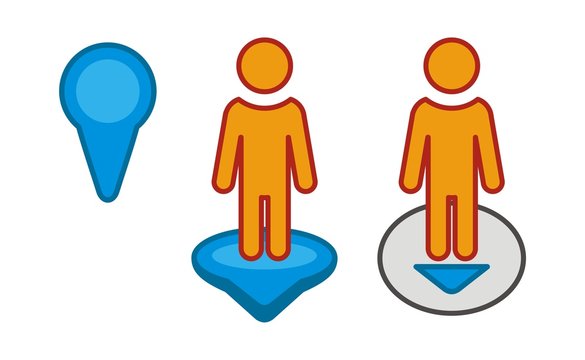
One of the most unique parts of this is the inclusion of pegman, the little yellow figure that unlocks Street View. Dragging pegman onto the map lets students take a virtual walk around their neighborhood, seeing familiar places from a whole new perspective. This inclusion allows for a much more interactive experience for the students when using the map.

The HyperDoc also introduces Google Maps’ timeline tool, allowing students to view how places have changed over time. This sparks discussions about urban development, history, and environmental change through an interactive experience where students can work at their own pace.

What makes this HyperDoc so effective is its ability to turn students into active learners. Instead of passively memorizing facts, they explore and discover for themselves. Geography isn’t just something they read about in a textbook, it is something that they experience.


Friday, March 28, 2025

Google slides as a Hyperdoc

In the United States, we love google and google software. The rest of the world prefers microsoft. That is not of particular importance however. It is only noteworthy because google will likely be the software of classrooms in America. For that reason it is important for K-12 educators to understand google software. Google slides do not have to be just words on a screen used for lecture, google slides can be so much more. I found a "beginners guide" to hyperdocs and found it to be a nice thorough enough video that showcases, in a beginners fashion, some capabilities of hyperdocs via google slides. 
As I noted previously, the world uses Microsoft, whereas America uses Google, and while I personally think that Microsoft has a significant gap between them and other software, Google slides are by no means bad. I think that Google slides are a nice, friendly on the eyes software, that, while it may not possess ALL of the capabilities of PowerPoint, it still very much can hold its own as a suitable program for educational settings. On the whole, Google Slides is very similar to PowerPoint, but Google owned programs flow better through Slides. That means that educators can connect Google Docs, Google Sheets, even Google Maps to their Slides, among other tools, and the classroom can access it all through the sole Google Slides. This can streamline a lesson and make it significantly easier for students to access a multitude of links, sites, etc. Using Slides as a hyperdoc also creates a centralized base for all essential links, sources, and embedded tools. 
Since hyperdocs are interactive, it will be much more engaging for the students because it isn't a boring lecture. They are enabled to click around, explore a little, and that can help stimulate their learning and consequently, their understanding. Speaking of understanding, educators have to understand hyperdocs as well, and there are many online resources where educators can get some inspiration. While this site, may not be exclusive to Google slides, it offers templates and ideas for hyperdocs. There is a paid subscription to access ALL of the sites resources, but there is a free option that allows for usage. Overall, hyperdocs via google slides can elevate a lesson. It can help students stay engaged and promote further understanding and learning if done right. In order to do it right, educators have to learn the program they wish to use, or find templates or learning opportunities for themselves. 


Sunday, March 2, 2025

Bridging the Language Gap with Microsoft Translator

    In the diverse learning environments of today, effective communication between educators, students, and families is more important than ever. Many students come from multilingual backgrounds, and language barriers can create challenges in learning, engagement, and family involvement. As educators, we need to ensure that every student and their family feels heard, understood, and supported regardless of what language they speak.

Why Language Accessibility Matters

     With the multicultural nature of schools and with students and families speaking a wide range of languages, many schools are struggling. This struggle with providing translation services is due to a lack of resources with hiring language interpreters for each language being very costly. I have found that there is another way to help break the language barrier through the use of technology, in this case using Microsoft Translator.

How Microsoft Translator can Help

     Microsoft Translator is a powerful tool that allows educators, students, and families to communicate in multiple languages in real time. Whether through text translation, live captions, or speech to text conversations, this tool makes multilingual communication seamless. Using Microsoft Translator educators can effectively translate in real time during parent teacher meetings which ensures that every family has access to important information. Teachers can also use Translator to translate instructions and lessons to make sure that non English learners don't fall behind.

Using Microsoft Translator

The best part about Microsoft Translator is its ease of use. Teachers, students, and parents can access it through a mobile app or integrate it with platforms like OneNote and Word for written translations. It’s a simple yet powerful way to ensure that no one feels left out due to language differences. If you’re an educator looking for ways to improve communication in your school, Microsoft Translator is a tool worth exploring.


Sunday, February 23, 2025

The Global Educator Toolkit

The Tools of the Trade

    As an educator it is important to have a wide variety of tools at your disposal to be used for your classroom learning environment. Some of these tools may cover a wide range of needs while others are highly specialized for certain situations. Keeping these tools handy can help both yourself as an educator as well as the students in your classroom.

What Tool is Best?

    Out of all the tools in the Global Educator's Toolbox the one I found to be the most useful is Learning for Justice. I chose this tool because it aligns with my goal for my classroom to create a welcoming environment that is inclusive to all of my students. This tool offers research strategies to address issues such as racism, bias, and social justice. Each of these issues being addressed are critical to understand in today's educational environment. With this information educators can be equipped to help students develop the skills necessary for navigating a diverse world.

Image Source

What I Found Useful in this Tool

Image Source

    One of the most beneficial aspects of Learning for Justice is its wide variety of available lesson plans that are categorized by grade level and topic. These lessons provide content that can be adapted to suit different classroom settings. Learning for Justice also offers professional development resources that help teachers become more culturally educated educators by including action guides and toolkits to help with discussions on equity and justice. The student texts and perspectives portions featured highlight diverse voices and experiences, ensuring that students engage with materials that reflect a wide range of backgrounds. The site also includes unique content such as film kits and teaching strategies that encourage critical thinking and active engagement with social justice topics. All of these aspects combine to make a highly effective tool for an educator looking to improve the quality of their learning environment.

How I Would Use Learning for Justice in My Classroom

    There are several ways that I would use this resource to improve my classroom. Since so many lesson plans are provided by Learning for Justice I would look through each one and decide which ones to incorporate into the curriculum. Doing this would help include ideas such as diversity, identity, and equity into my classroom. In addition to the lesson plans provided I would also include some of the student texts on the website to help introduce more diverse voices into my classroom. The inclusion of all of these diverse and sometimes complicated ideas can help facilitate respectful discussions of these heavy topics in a safe environment.

Monday, February 10, 2025

 Collaborating in the Classroom

    Since a young age we have been learning to work with others. It started as play when we were toddlers, turn and talks in the early education years, to group projects and presentations in secondary education and those expectations for collaborating didn't jus stop in high school. People do it everyday at their jobs. From talking in meetings to collectively coming up with a plan for a business and even still working on group projects the ability to work well with others is imperative in most jobs, but especially education. Teachers work together everyday to come up with lesson plans and fun learning activities that an be done within their classrooms. They bounce ideas off of coworkers, their teams that they have within their grade ban, other teachers in the district and even teachers all over the country. Thanks to social media teachers are able to connect all over the internet. They tweet ideas and ask questions and are able to gain different perspectives from all different walks of life. 


Personally I have experienced the benefits from collaborating with other teachers and coworkers within my job an my clinical hours. I am currently completing my final clinical (student teaching), where I collaborate with my mentor teacher everyday. I stay after most school days we discuss our plan for the next day. We reflect on the day- what worked? what didn't? and we try and come up with the solutions and new ways to do things efficiently. Just the other day I went into the other kindergarten teacher's room and asked her how she makes the time for learning centers because we struggle in my room and she walked me through step by step on how she runs center time. I took a lot from her and it was only five minutes of both our times. Communication is a superpower and it is a huge influence on the ability collaborate. Being able to collaborate can open door within the workforce and open your own perspective to new ideas helping you grow as a professional.  


Saturday, February 8, 2025

Collaboration: In and Out of the Classroom

As the world continues to grow, so too will the technology that inhabits it. As a society, we must learn how to utilize the technology we live alongside to its maximum extent. This includes of course, how we utilize technology in the classroom. We can use the technologies at our disposal to increase collaboration between students, allowing them to work together and work alongside each other in ways that can benefit their education. Collaboration in the classroom is more than just forcing students to work together, but instead giving them access to tools that can help them work together in more efficiently and in greater capacity. It is uber important for us to teach our students how to collaborate and how to collaborate effectively because "there are very few jobs that don't require some degree of collaboration"(Sail the 7 Cs  with Microsoft Education, collaborators chapter). The question that remains is.. How? How can educators introduce collaboration to their classroom and their students? 


For students, collaboration in the classroom likely stems from their teachers, so it is crucial that their teachers bring proper and adequate collaboration to the classroom. In a way, collaboration should be instilled as a classroom culture. From day one, collaboration needs to be made the norm, not just an occasional event. Students should always be working together, whether in groups or online. The question now becomes, well, collaboration in the classroom is rather straightforward, but how can students collaborate out of the classroom? This is where the great advances in technology come in, and all educators have to do is harness it. Here are some examples of tools that can be used to heighten collaboration outside of the classroom: OneNote, a digital notebook; Social Media, which can be used to allow students to interact with each other, within school contexts of course; Microsoft Teams, which can create an online, away from school class where students can operate without the binds of class time and fully on their own.  

It is important for educators to grant their students the ability to collaborate, as it is a crucial skill necessary throughout their entire lives. Educators must also utilize tools properly, and that requires work outside of the classroom for them too. However, should teachers create the opportunities, students will surely react positively, as humans love to work together. As the world continues to grow and adapt, so too will the technologies inhabiting it, and educators must continue to stay up to the task of being capable of utilizing these tools to the benefit of their students. 

Collaboration Through Media

Education is always powerful for growth and inspiration, but in recent years, technology has taken it to new heights. With an expanding world of media outlets and educational resources, teachers now have so many ways to enrich their lesson plans and make learning more dynamic and engaging for their students. As educators embrace these new tools, students are also empowered to take ownership of their learning and dive deeper into their subjects.

In Sail the 7 Cs by Becky Keene and Kathi Kersznowski, the authors dive into the impact of media and technology through education and in any workplace necessary to benefit from these tools. In Chapter 2, the focus is on collaboration, and one tool that stands out for facilitating this process is Microsoft Teams. Teams offers an easy way to share and consume media through video, audio, and file sharing in a collaborative space.

A great example provided in the chapter discusses how two people might collaborate on a PowerPoint presentation. Tools like Google Docs let users see changes made in real-time, but communication still relies on emails or text messages, which can lead to delays of hours or even days when trying to reach a consensus. However, Microsoft Teams allows group members to work on their slides, see each other's changes in real-time, and communicate instantly using Teams audio feature. This means decisions can be made and revisions discussed right away, cutting down the time it would typically take to reach an agreement and/or completion.


With tools like Microsoft Teams, collaboration is no longer confined to slow, drug out communication. Instead, educators and students alike can experience more efficient interactions that enhance learning and creativity. It’s clear that technology, when used appropriately, can be extremely beneficial in growing how we learn and work together. 

There are many other incredible media platforms that provide collaborative learning in education. Social media networks like X (formerly Twitter), LinkedIn, Bluesky, and others provide opportunities for connecting with like-minded individuals. These platforms enable people to share, discuss, and learn from one another. What I find particularly valuable about these media sources is that, when you're stuck on lesson plans, projects, or any other challenge, you can easily reach out for guidance, ideas, and advice.


Friday, February 7, 2025

Setting goals to Empower the Individual

There have been many positive changes within education that focus on the individual student, rather than the class as a whole. With these changes, educators have seen their students take learning into their own hands and push to achieve goals they feel can be reachable, while also giving them a challenge to go above their typical learning limits. In the book, Adventures in Authentic Learning by author Kristin Harrington, Harrington dedicates a passage on pages 4-6  to “Goal Setting for Empowerment.” As a future educator, this passage is crucial in establishing ways to encourage students to transform into leaders, rather than listeners or followers, and have a say in how/what they learn. This is developed through goals and Harrington gives great ways on how to implement them in the classroom.

Every student learns differently, what may be beneficial for some students may not be as favorable to others. When having students set goals, it is important to give options on how and where these goals can be accessed. Some students may prefer their goals to be written, others might rather see their goals through pictures or drawings, while another group of students do best hearing their goals out loud. There are so many incredible resources, whether it be through technology or what can be used within the classroom, students have the ability to decide what works best for them. Let’s get into some ways students can create their goals, that correlate with how they learn best:

A great way for students to see their goals is by creating vision boards, or also known as idea boards. Educators can encourage their students to find pictures and/or create drawings that show what their goals are. For example, if a student's goal is to do well on their science labs, they could draw beakers with A+s in them and have an arrow pointing to a happy face. Another way to lay out this goal could be to find a picture of a scientist or other students working on an experiment. This can help students visualize the goal they want to achieve, instilling motivation for them to feel the same way as the students pictured. 


Another incredible way for students to lay out their goals is on websites like Animoto. Students are able to create their own videos through a safe space and in any form that fits their way of learning best, while implementing their goals. This allows them to not only see their goals, but to also hear them. They can incorporate their own voices to an Animoto video, while also having the option to add music or better yet, their favorite song. 


In Kristin Harrington’s book, she also provides a great example for students who want to read their goals, by creating goal cubes. Students can have the option to have wooden cubes where they write their goals on each flat side of the cube, or they can build their own with paper or card stock. The idea of having something they can carry with them or have at their desks is a great way to keep reminding them of their goals. Students can get creative by writing out their goals in different colors or maybe even in a plain color, but adding drawings or colors around their written goal. 


It is important to note that while giving students the freedom to create goals they can strive to achieve for the week, month, or year - goals need to be measurable and guided with an educator on what is important/appropriate in the classroom. After these goals are discussed and made, it is essential that students revisit and reflect on them. Educators can include time in their lesson plans for regular check-ins on their goals. This time can also allow students to share their progress with classmates, teachers, guardians, and other school staff outside of their immediate classroom group.