Showing posts with label Implementing Classroom Tools. Show all posts

Sunday, April 20, 2025

Using Nearpod in Classrooms for Global Collaboration

In today's society, global collaboration is no longer optional, but necessary. Students are growing up in a globally connected society, and equipping them with tools to collaborate, and problem solve with others around the world is essential. One of the tools that help make this possible is virtual reality, and Nearpod stands out as an accessible way to bring immersive, international experiences into classrooms.

What is Nearpod?

Nearpod is an learning platform that allows educators to deliver engaging interactive lessons using assessments, multimedia content, and collaborative tools. Its virtual reality feature lets students take 360 degree virtual field trips to global landmarks, cultural heritage sites, and natural wonders of the world, all from the comfort of the classroom.
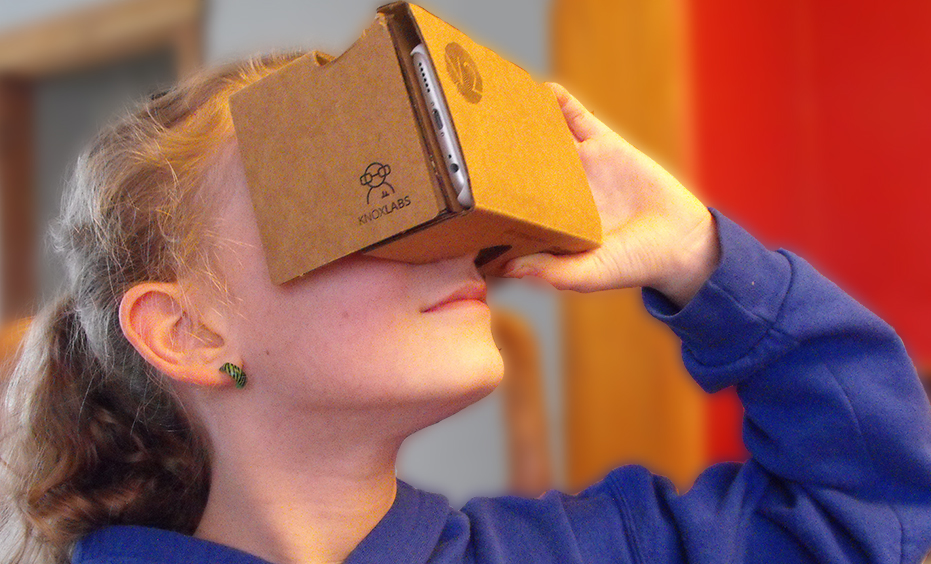
One of the benefits of Nearpod is that unlike other virtual reality tools it is not necessary to use expensive equipment. Nearpod is compatible with inexpensive viewers like Google Cardboard and can also be used on regular tablets and Chromebooks which makes it highly accessible for classrooms around the world regardless of budget constraints.

Supporting Global Collaboration

Nearpod goes beyond just sightseeing, it lays down the groundwork for meaningful cross cultural communication and project based collaboration. Students on opposite sides of the world can take a virtual tour of the same historic place together. After exploring, they can collaborate and ask questions that would be unique to their culture which can help build a greater global understanding. Students can also visit important environmental places that are in danger like the Amazon Rainforest or the melting glaciers in the arctic, then partner with peers in other countries to brainstorm climate action plans. This fosters empathy, critical thinking, and problem solving in the real world. Nearpod can also enable students to explore everyday life in other countries, visiting towns, homes, and schools in different regions. These experiences can become conversation starters in global writing programs or cultural exchanges. 

Nearpod Lesson Plans 

Educators can incorporate Nearpod into their classrooms through lesson plans such as this one. In this lesson students can explore the grand canyon and learn about it through a virtual tour and in an interactive environment. After the virtual tour students can make a poster sharing what they learned from the experience.

Nearpod can be used in many creative ways to help build a deeper understanding of global connections and can create a dialogue between different cultures through its use in the classroom.

Sunday, April 13, 2025

WE Virtual Learning Center: The Future Of My Classroom

     All throughout the semester, it has been a great learning opportunity to understand and engage with online web tools. As we come to a close for this semester, I explore one last reflection, and ultimately provide my audience with tools I will be using in my future classroom. 

    WE Virtual Learning Center, is a website dedicated to providing resources for not only students, but educators as well. Throughout my discovery of this website, I found something called We Virtual
Workshops
. On this tab of the website, it provides videos which are labeled as workshops. These videos go in depth about lessons, and even connect students to others around the world, with something called Global Classrooms

When explaining major subjects, these videos/virtual workshops will come in handy within the classroom. They are fun, interactive, and engaging all at once, which will be perfect to incorporate into lessons.     Overall, I love this website, and I will be exploring it further and using other tools provided as well.


Changemakers: Service Learning Toolkit

Why This Toolkit is a Game Changer

The WE Schools Service Learning toolkit is a guided roadmap that assists in examining social issues, creating action plans, and implementing effective projects within the community. With a service learning emphasis, it aligns classroom education with practical application, providing real world experiences that coincide with classroom learning. Students are encouraged to ask hard questions, set targets, and work collaboratively.

Standout Features

Perhaps most striking, is how student friendly it is. The language is simple and compelling, there are interesting pictures, and the design allows for it to be easily followed by students as they make their way through the process from concept to impact. It is full of actual stories of success that make it still feel like something within reach.

The toolkit reflects a range of flexible campaign choices, including initiatives around sustainability, equity, and wellness, or the D.I.Y. campaign resource. The adaptable nature allows learners to link what they learn to those issues that are most meaningful to them. Moreover, the toolkit focuses strongly on reflection at all steps, with opportunities for students to record progress, to critically reflect upon experience, and to acknowledge and enjoy both academic and personal growth.

How I Plan to Use This Resource

In my future classroom, this toolkit will be great for project based learning. I will encourage my students to become active citizens through activities like a food drive at school, an awareness campaign on social media, or an environmental project for the community. We will use the worksheets to facilitate discussion, make decisions, and analyze results.

Monday, April 7, 2025

Seven Accessibility Tools

Assistive technology is transforming the way we read, write, and engage with content. Whether you're a student, educator, or someone looking for accessibility support, there are many beneficial tools designed to make digital communication more inclusive. Let’s get into some examples of these incredible tools:

Google Docs - Voice Typing

Voice Typing in Google Docs is a hands-free writing tool that is perfect for anyone who finds typing challenging or simply wants to capture ideas quickly. This tool is very easy to use and is available right in a Google document. Just go to the “Tools” tab and select “Voice Typing.” A microphone will appear and users can just click on the icon when they are ready to use and click again to stop the voice typing.

Microsoft - Immersive Reader

Microsoft’s Immersive Reader is a built-in feature in Microsoft Edge and across many Microsoft 365 apps, designed to make reading easier for everyone. It offers adjustable text size, spacing, background colors, read-aloud features, and grammar tools. In the classroom, it’s a great resource for teachers to personalize support for students learning to read. Immersive Reader makes text more accessible, guided, and user-friendly for all kinds of learners.

Screen Readers

For individuals with visual impairments, screen readers are essential. These tools convert text on a screen into speech or Braille, allowing users to navigate websites, read documents, and interact with content independently. Some of the most widely used screen readers include JAWS, Dolphin ScreenReader, Microsoft Narrator, and NVDA for Windows. There are also tools like Orca, TalkBack (Android), and ZoomText for other platforms and needs. Screen readers help make sure everyone has equal access to digital spaces.

C-Pen Reader

The C-Pen Reader is a tool that helps to improve reading skills, aid comprehension, and promote independence for individuals with difficulty reading or who may be learning a new language. The C-Pen Reader is an easy, pocket-sized tool that scans words and reads them aloud, using text-to-speech technology. 

Google Slides - Speaker Notes and Live Captions

Google Slides presents a tool for speaker notes and caption features to help individuals expand their presentations while also benefiting others who are viewing the presentation. The speaker notes section helps presenters stay on track, while the live captions feature displays spoken words in real-time on the screen. This can be a game changer for those with hearing impairments, language learners, or anyone sitting in the back of the room. Speaker notes and live captions is all about making presentations more accessible and engaging.

Microsoft Windows - Color Filters

Although color filters are often associated with photography, they have another important role with accessibility. For individuals who are color-blind or have difficulty focusing on on-screen text, changing color contrast or applying filters can dramatically imp
rove one’s ability to read. Adjusting these settings can make text pop, reduce eye strain, and help maintain concentration. It’s a small tweak that can make a big impact.

Google Meet - Transcripts

Transcripts in Google Meet allows participants to review and edit meeting dialogue in written form. This is beneficial for referencing key points, creating meeting minutes, and keeping everyone on the same page. Transcripts also helps people of another language to receive the meeting dialogue in the language they know best. For example, the meeting transcripts are available in English, French, German, Italian, Japanese, Korean, Portuguese, and Spanish. 


Sunday, March 30, 2025

Exploring Google Maps by Using a HyperDoc


Traditional geography lessons can feel a bit dull, but HyperDocs bring them to life. I explored a HyperDoc for Google Maps in the form of a slide deck that makes learning both fun and more engaging than ever.

Instead of just reading about maps, students interact with them by zooming in, exploring Street View, and even traveling back in time. The lesson starts with a simple challenge of finding your school on Google Maps. From there, students zoom in, explore, and observe details they may not have noticed before.

One of the most unique parts of this is the inclusion of pegman, the little yellow figure that unlocks Street View. Dragging pegman onto the map lets students take a virtual walk around their neighborhood, seeing familiar places from a whole new perspective. This inclusion allows for a much more interactive experience for the students when using the map.

The HyperDoc also introduces Google Maps’ timeline tool, allowing students to view how places have changed over time. This sparks discussions about urban development, history, and environmental change through an interactive experience where students can work at their own pace.

What makes this HyperDoc so effective is its ability to turn students into active learners. Instead of passively memorizing facts, they explore and discover for themselves. Geography isn’t just something they read about in a textbook, it is something that they experience.


Monday, March 3, 2025

Classroom Communication

     After reading Sail the 7 C's chapter 2 on Communicators, it has really opened my mind on all of the different ways to communicate. A perfect example would be this class specifically, we are on online based class and the only way to communicate amongst each other is through emails or through our blog posts. Keeping those paths of communication open could potentially open more doors for us students to share phone numbers, social medias, and even potentially get together in person. 

    I have been attending my entire three years of college strictly online and can honestly say I've never noticed or had such clear communication as I do now. I'm not sure if it's just due to me maturing and being more attentive to my work, or if it's the different platforms we have been given access to. We have all created social media account for this course and followed each other, liked each other's posts, commented on each other's posts, and have shared each other's posts. We also have been given access to this blog, with each blog we all individually post, we are given the opportunity to make comments and communicate on the topics being discussed. 

    When I hear communication I often think of speaking in person and making eye contact. It's never really dawned on me until reading chapter 2 that there are many different forms of communication and we have access to all of them in this course. The communication that has taken place so far this semester I can say honestly is top tier. I've seen many different opinions and views amongst all of us, but we have all kept a level of respect amongst each other and have kept our lines of communication open.

Sunday, March 2, 2025

Bridging the Language Gap with Microsoft Translator

    In the diverse learning environments of today, effective communication between educators, students, and families is more important than ever. Many students come from multilingual backgrounds, and language barriers can create challenges in learning, engagement, and family involvement. As educators, we need to ensure that every student and their family feels heard, understood, and supported regardless of what language they speak.

Why Language Accessibility Matters

     With the multicultural nature of schools and with students and families speaking a wide range of languages, many schools are struggling. This struggle with providing translation services is due to a lack of resources with hiring language interpreters for each language being very costly. I have found that there is another way to help break the language barrier through the use of technology, in this case using Microsoft Translator.

How Microsoft Translator can Help

     Microsoft Translator is a powerful tool that allows educators, students, and families to communicate in multiple languages in real time. Whether through text translation, live captions, or speech to text conversations, this tool makes multilingual communication seamless. Using Microsoft Translator educators can effectively translate in real time during parent teacher meetings which ensures that every family has access to important information. Teachers can also use Translator to translate instructions and lessons to make sure that non English learners don't fall behind.

Using Microsoft Translator

The best part about Microsoft Translator is its ease of use. Teachers, students, and parents can access it through a mobile app or integrate it with platforms like OneNote and Word for written translations. It’s a simple yet powerful way to ensure that no one feels left out due to language differences. If you’re an educator looking for ways to improve communication in your school, Microsoft Translator is a tool worth exploring.


Monday, February 24, 2025

Virtual Field Trips with Discovery Education

    Not every child is fortunate enough to be able to participate when it comes time for field trips. I remember being a child and being so excited the days we would go on field trips and having to watch certain students be sent to other classes with work to do for the day because they were not able to go. Whether it's due to students not being able to particiapte financially or if the parents just don't want the child going due to their own personal views, it's never fun to be left out espeically while watching all of your friends excited to go have fun. 
     
    Discovery Education has created an opportunity to ensure all children can participate in fun classroom activities and create a small break in "traditional learning". Granted the virtual field trips aren't going to be all day like in person trips would be, but it takes time in the class for the students to learn about differnt topics, and interact in the same ways during a field trip. I watched the virtual field trip, Night Navigators: Build for Bats and they were being extremely informative and used different ways to draw the children in. Not only did they learn, they also used play with legos and how to build a change to protect the bats.
https://buildthechange.discoveryeducation.com/pages/8b0d57c4-b582-4368-ade1-514ad78a6431?_gl=1*1h3r2e7*_gcl_au*MTA1ODkyMjgxNi4xNzQwNDEyODI3*_ga*MTU5NTkxNDMxMS4xNzQwNDEyODI3*_ga_QGF5X0KQV5*MTc0MDQxMjgyNy4xLjEuMTc0MDQxMjkwMC42MC4wLjA.
https://www.discoveryeducation.com/community/virtual-field-trips/

    In the future when I have my own classroom, I will 100% be utilizing materials such as Discovery Education to bring some fun into my classroom. Truth be told, not every child is going to enjoy coming to school everyday and learning the basic skills of reading and math. Implementing fun activities such as Discovery Education, and hands on learning and play is a great way to keep the students engaged and keep their want to come to school, to come to my class.


    Not only does Discovery Education have the perks of no permission slip field trips, the program is free to use for both students and teachers. Students have access to games, videos, labs, lesson plans, homework help, and many more activities. Many schools provide students with iPads, or laptops for classroom use and at home use. Discovery Education is a great program to create accounts for the students to use for extra learning, not only could it be used to assign work to be completed, it can be viewed as "fun work" to be completed. I would probably use Discovery Education for not only their virtual field trips but also for centers, this would be a great program to use for student learning.