Showing posts with label 21st Century Learning. Show all posts

Monday, April 21, 2025

Veative - Virtual Reality

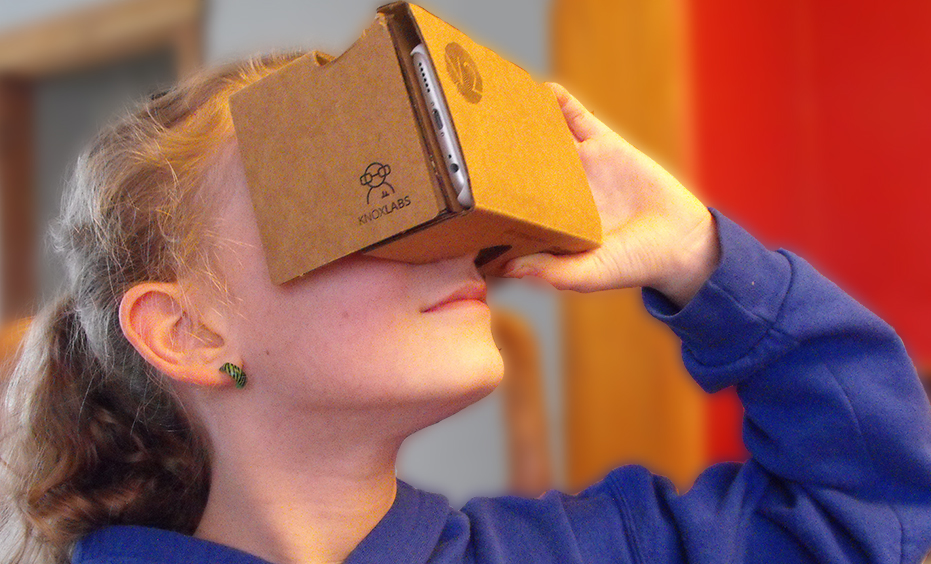
 Education is constantly expanding due to the incredible benefits of technology. Virtual reality use in classrooms is becoming more popular due to its ability to create interactive and immersive learning experiences. Virtual reality enhances student learning, understanding, and retention. VR can be used in classrooms to simulate real-world scenarios, like science experiments, field trips, or just exploring the world. This provides students with opportunities to learn in ways that are not possible to do in traditional classrooms. 


One virtual reality company I had researched was Veative. Veative provides immersive learning solutions using virtual reality technology for schools and educational programs. Their VR programs come with easy-to-use online classroom and content management systems. With the systems, teachers can view module content for lesson planning, provide VR content modules at the same time and on all students headsets. Teachers can pause or stop the module at any time and monitor in real time what students are seeing. 


Veative’s virtual reality learning experience comprises t
he world’s largest library of curriculum-aligned AR/VR modules for STEM, ELL, and virtual tours. The immersive knowledge resources offered include, K-12 STEM, history and culture, language learning, and higher education. 


Virtual reality programs like the ones provided by Veative, fully immerses students by completely focusing and learning topics. When experiencing lessons in this way, students are able to create clear and detailed mental visions, helping to improve knowledge retention. 


Nearpod And Global Collaboration

Nearpod is an interactive tool that is used in the classroom that allows teachers to create and share presentations, quizzes, polls and even videos. 

    Nearpod is aimed at making the classroom a more interactive place for students and allowing lessons to be teacher-led, student-paced, or even in front of the class. 

    Not only is Nearpod a great use for teacher use, it also allows the students to interact with students virtually all over different parts of the country and other countries. 

    Global collaboration is being introduced more and more in classrooms everyday with the help of programs like Nearpod. Nearpod also has the ability to let students tour different areas around the world without having to physically visit the locations. Students are able to create relationships and learn about different parts of the country virtually. 

    Creating interactive lessons in the classroom is such a game changer. I have always enjoyed hands on lessons more than just reading or listening to someone speak about a topic. I have also witnessed first hand how much more engaged other students have been when partaking in an activity and being able to navigate things on their own. Nearpod seems like such a cool and inclusive tool that I would definitely use in my classroom! 

Augmented and Virtual Reality: In The Classroom


     AR and VR, both are technology experiences which can be incorporated into the classroom, but what are they? AR or augmented reality is a computer generated image that presents itself in real time through a device. VR stands for virtual reality, a piece of technology that transforms your space into a completely new reality. Both of these things can be useful in the classroom, such as incorporating lessons on global goals. We can take for example, AR being used, and design a computer generated image to show off what it would look like if the students’ spaces are polluted, falling into the lesson of global goal 13, climate action.

    Students are able to experience these by using applications that allow them to engage, such as Youtube 360, which focuses on virtual reality elements. By allowing students to see the world around them, it might give them better insight on their lessons. There are even videos such as virtual museums and tours! These lessons are very important to show off as they can help with teaching, and student understanding when they aren’t able to visualize different lifestyles/environments.

Nearpod: Global Collaboration opportunities

Nearpod is a digital lesson library. There are countless lessons and available activities on this site. You may ask yourself, why does that matter even in the slightest? Well.. By having such a large selection of resources, Nearpod has boundless opportunities via countless means. Many of those opportunities can contribute to global collaboration, as there are lessons from across the world available on Nearpod by which classrooms can gain a global consciousness. There are also many lessons with VR or AR capabilities where students can utilize modern technologies. 

As a global tool, Nearpod is used all over the world. Because of this, the opportunities are vast for, say, classrooms in America to be granted exposure to classrooms all over the world. Not just the students, but educators as well can benefit from the global presence that Nearpod has access to. Educators in 160+ countries use Nearpod. For educators, exposure to educators from all over the globe can lead to inspiration and the ability to craft new lessons for their classrooms!

Returning to the ideas of global collaboration...
Through Nearpod, classrooms in non-affected areas can learn about issues in affected areas. That probably sounds vague and makes no sense, so here is an example: The conflict in Kashmir is not happening in the United States, and thus, may go relatively unknown to students. Nearpod has lessons on this conflict however, and from this, students can gain an understanding of global events. Through their understanding, students, working on goals projects or any project in general, can address the issues, working alongside their peers and potentially governments to try and make a powerful statement on topics all over the world. 
Students can work together, with their classmates on projects, but that isn't all that much GLOBAL collaboration is it? Nearpod has collaboration activities, where students can collaborate, similar to a padlet or a jamboard. This next part is solely on the educators to make possible. Collaboration is possible across borders, continents, and oceans. The only prerequisite is that educators from across the world will have to connect first. Should they connect, they can bring their classrooms together and have their students work alongside each other, despite any distance between them! Through this collaboration, issues such as the Kashmir conflict can be discussed by students of many nations(if their teachers connect first that is!). Should there be a connection between classrooms, those global goals projects I mentioned earlier can be worked on by students who simultaneously on opposite sides of the planet! Those projects would be so interesting, as the collaboration between different nations students could yield great results. 


Sunday, April 20, 2025

Using Nearpod in Classrooms for Global Collaboration

In today's society, global collaboration is no longer optional, but necessary. Students are growing up in a globally connected society, and equipping them with tools to collaborate, and problem solve with others around the world is essential. One of the tools that help make this possible is virtual reality, and Nearpod stands out as an accessible way to bring immersive, international experiences into classrooms.

What is Nearpod?

Nearpod is an learning platform that allows educators to deliver engaging interactive lessons using assessments, multimedia content, and collaborative tools. Its virtual reality feature lets students take 360 degree virtual field trips to global landmarks, cultural heritage sites, and natural wonders of the world, all from the comfort of the classroom.

One of the benefits of Nearpod is that unlike other virtual reality tools it is not necessary to use expensive equipment. Nearpod is compatible with inexpensive viewers like Google Cardboard and can also be used on regular tablets and Chromebooks which makes it highly accessible for classrooms around the world regardless of budget constraints.

Supporting Global Collaboration

Nearpod goes beyond just sightseeing, it lays down the groundwork for meaningful cross cultural communication and project based collaboration. Students on opposite sides of the world can take a virtual tour of the same historic place together. After exploring, they can collaborate and ask questions that would be unique to their culture which can help build a greater global understanding. Students can also visit important environmental places that are in danger like the Amazon Rainforest or the melting glaciers in the arctic, then partner with peers in other countries to brainstorm climate action plans. This fosters empathy, critical thinking, and problem solving in the real world. Nearpod can also enable students to explore everyday life in other countries, visiting towns, homes, and schools in different regions. These experiences can become conversation starters in global writing programs or cultural exchanges. 

Nearpod Lesson Plans 

Educators can incorporate Nearpod into their classrooms through lesson plans such as this one. In this lesson students can explore the grand canyon and learn about it through a virtual tour and in an interactive environment. After the virtual tour students can make a poster sharing what they learned from the experience.

Nearpod can be used in many creative ways to help build a deeper understanding of global connections and can create a dialogue between different cultures through its use in the classroom.

Sunday, April 13, 2025

Harbringers of positive, communal change


Following the conclusion of this semester, the Spring 2025 semester, I will officially be closer to entering the classroom as an educator than I was leaving the classroom the last time as a student(K-12). With that in mind, it is important to begin formulating how exactly one will go about leading their classroom! Those formulations should be things that future educators are excited about, things that will immediately bring value to the classroom. 

I did some digging around the WE.org site, and eventually came across the service-learning student toolkit. This toolkit revolves around, well, service learning! As I read through this toolkit, I saw that the examples of success stories working with a service-learning oriented approach were younger students. I will be a high school teacher, so ages 15-18. My thinking process leads me to believe that service learning is better suited for that age group. These students are entering either college or the workforce, part-time or full time, and the skills that can be gained from this learning style can greatly aid in the endeavors, both future or current, for high school students. Skills like those listed below are very important to have whether or not a student goes to college or the workforce. 
Should I be able to find ways to engage my students into a service-learning environment, I can set them up to cultivate vital traits that will greatly benefit their futures. As an educator, I see it as my role to inspire and provide as much support to my students. That would include examples like this, providing opportunities for my students to grow. 
Potentially incorporating a toolkit like this also excites me, as high school age students have one thing at their disposal that other level students don't... cars! If working through these lessons inspires them, they can go out on their own and continue doing good in the world. That is exciting to me because that is what I aim to do as a teacher: I aim to inspire and promote good, and through lessons like this, that is very much possible. 
Through lesson guiding, or through individual efforts, my students can go out into the world and bring about a positive impact. Just the idea of that is exciting, and the potential lesson planning like the service-learning student toolkit brings is enough for it to be incredibly valuable to any classroom. If incorporated properly, students can become harbingers of positivity, and that would make me, as an educator, so incredibly proud of them and what we have been able to do! 


Changemakers: Service Learning Toolkit

Why This Toolkit is a Game Changer

The WE Schools Service Learning toolkit is a guided roadmap that assists in examining social issues, creating action plans, and implementing effective projects within the community. With a service learning emphasis, it aligns classroom education with practical application, providing real world experiences that coincide with classroom learning. Students are encouraged to ask hard questions, set targets, and work collaboratively.

Standout Features

Perhaps most striking, is how student friendly it is. The language is simple and compelling, there are interesting pictures, and the design allows for it to be easily followed by students as they make their way through the process from concept to impact. It is full of actual stories of success that make it still feel like something within reach.

The toolkit reflects a range of flexible campaign choices, including initiatives around sustainability, equity, and wellness, or the D.I.Y. campaign resource. The adaptable nature allows learners to link what they learn to those issues that are most meaningful to them. Moreover, the toolkit focuses strongly on reflection at all steps, with opportunities for students to record progress, to critically reflect upon experience, and to acknowledge and enjoy both academic and personal growth.

How I Plan to Use This Resource

In my future classroom, this toolkit will be great for project based learning. I will encourage my students to become active citizens through activities like a food drive at school, an awareness campaign on social media, or an environmental project for the community. We will use the worksheets to facilitate discussion, make decisions, and analyze results.

Monday, April 7, 2025

Seven Accessibility Tools

Assistive technology is transforming the way we read, write, and engage with content. Whether you're a student, educator, or someone looking for accessibility support, there are many beneficial tools designed to make digital communication more inclusive. Let’s get into some examples of these incredible tools:

Google Docs - Voice Typing

Voice Typing in Google Docs is a hands-free writing tool that is perfect for anyone who finds typing challenging or simply wants to capture ideas quickly. This tool is very easy to use and is available right in a Google document. Just go to the “Tools” tab and select “Voice Typing.” A microphone will appear and users can just click on the icon when they are ready to use and click again to stop the voice typing.

Microsoft - Immersive Reader

Microsoft’s Immersive Reader is a built-in feature in Microsoft Edge and across many Microsoft 365 apps, designed to make reading easier for everyone. It offers adjustable text size, spacing, background colors, read-aloud features, and grammar tools. In the classroom, it’s a great resource for teachers to personalize support for students learning to read. Immersive Reader makes text more accessible, guided, and user-friendly for all kinds of learners.

Screen Readers

For individuals with visual impairments, screen readers are essential. These tools convert text on a screen into speech or Braille, allowing users to navigate websites, read documents, and interact with content independently. Some of the most widely used screen readers include JAWS, Dolphin ScreenReader, Microsoft Narrator, and NVDA for Windows. There are also tools like Orca, TalkBack (Android), and ZoomText for other platforms and needs. Screen readers help make sure everyone has equal access to digital spaces.

C-Pen Reader

The C-Pen Reader is a tool that helps to improve reading skills, aid comprehension, and promote independence for individuals with difficulty reading or who may be learning a new language. The C-Pen Reader is an easy, pocket-sized tool that scans words and reads them aloud, using text-to-speech technology. 

Google Slides - Speaker Notes and Live Captions

Google Slides presents a tool for speaker notes and caption features to help individuals expand their presentations while also benefiting others who are viewing the presentation. The speaker notes section helps presenters stay on track, while the live captions feature displays spoken words in real-time on the screen. This can be a game changer for those with hearing impairments, language learners, or anyone sitting in the back of the room. Speaker notes and live captions is all about making presentations more accessible and engaging.

Microsoft Windows - Color Filters

Although color filters are often associated with photography, they have another important role with accessibility. For individuals who are color-blind or have difficulty focusing on on-screen text, changing color contrast or applying filters can dramatically imp
rove one’s ability to read. Adjusting these settings can make text pop, reduce eye strain, and help maintain concentration. It’s a small tweak that can make a big impact.

Google Meet - Transcripts

Transcripts in Google Meet allows participants to review and edit meeting dialogue in written form. This is beneficial for referencing key points, creating meeting minutes, and keeping everyone on the same page. Transcripts also helps people of another language to receive the meeting dialogue in the language they know best. For example, the meeting transcripts are available in English, French, German, Italian, Japanese, Korean, Portuguese, and Spanish. 


Google: an accessibility driven Company

In the United States K-12 education system, the google system is widely used. Google has a myriad of tools that can be used in the classroom, and due to their increased usage in the United States, I do believe that Google has ensured that their tools have proper accessibility upgrades to make sure that the students who use their tools are all accommodated for. 
Google launches new Android accessibility updates

Google Chromebook accessibility upgrades:

A Chromebook was distributed to every student in my high school beginning in 2020 (Covid influenced this decision by the district). I am sure that other districts across the country followed a similar path. With students having access to the Chromebook it then becomes a priority to create an environment where ALL students can thrive. The Chromebook has several key accessibility upgrades that can aid those with visual impairments. The big three of those upgrades would be the In Screen Reader, the braille device-Chromebook compatibility, and the On Screen Keyboard. The In Screen Reader is a tool that reads the screen to the computer user, making the user able to still comprehend what is on the screen, even if they struggle seeing. Compatibility with Braille devices allows blind users to read their screens through their device, making the internet a new realm that formerly was blocked off. For those with poor vision, the On Screen Keyboard can be used to place a keyboard on the screen, which is much larger and also is able to be used by touch(if available on the computer). 

Google Docs follows suit:

Google Docs has similar accessibility capabilities as the Chromebook in general, and that should be expected! It is all google after all. Google Docs has the same In Screen Reader as the Chromebook, however, in Docs, the Reader can be used to edit documents! The braille accessibility is still available within Google Docs which will aid those with vision problems. Where Docs differs from the broader Chromebook is that you can type through your voice. This can aid those who, again, struggle with vision. The ability to speak instead of type can make writing much easier if it is difficult to see the keys on a keyboard. 

Gmail and the importance of Email: 

An email and access to it is important at all levels of life, whether as a student or adult. However, some people do need aid, and Google has provided some with its tools built into Gmail. The trend continues! Gmail also has access to the In Screen Reader. This of course allows for the visually impaired to get some help with what is on their screen. As for an overall accessibility upgrade, Gmail can be accessed, through IMAP(Internet message access protocol), across multiple email clients. In other words, your gmail can be utilized through other email applications like outlook. 

Google Slides, copying Docs? It's all Google so yeah!

Google slides is another heavily used Google application. As mentioned above, the schools of The United States love google, so slides is used heavily for projects and lecture slides. For students with visual impairments to do work in Slides, it is important that their vision gap is met with proper accessibility upgrades. Google Slides also has the built in In Screen Reader, which, same as for the previous tools, can be used to read the screen to the user, enabling them to hear, should they struggle reading. Slides also has access to Braille device compatibility. A tool that separates Slides from Docs however, is their caption system. While presenting a slideshow, the user can turn on captions, allowing those who may have trouble hearing the ability to read the captions of the presentation, bridging the auditory gap. 

Google Sheets, the hardest Google tool to learn:

Sheets is hard to learn in its entirety, but that is just because it has the most baseline features. What that means however, is that it can be increasingly difficult for students with accessibility needs. Following the preceding programs, Google sheets has Braille device support and the In Screen Reader built into it. This includes the In Screen Readers ability to have live commentary. This live commentary would be useful when collaborating on a document with others. The In Screen Reader can announce the entrance and departure of document collaborators along with whether or not the user is working(typing, deleting, inserting) near one of their collaborators. Once more, Google is making sure their most used tools have accessibility features for those with visual impairments, ensuring that they do not feel left out and are quite literally not left out. 

Google Chrome, searching for accessibility: 

While using the google search engine, students with accessibility issues have been given the opportunity to search for accessibility features via Chrome extensions. This tool, the Chrome extension tool, allows students to search for accessibility features that can tailor to their needs. Chrome also has the capacity to turn on image descriptions, where the device will describe images that are on the screen. The most intriguing tool is the Chrome Actions tool. This tool can streamline, well, actions. This can help speed up processes and allow students to work faster, which can aid students. An example of this would be asking Chrome to "create a google doc" or "translate this page." This tool is interesting and I am curious as to why Google created it, because there must have been a specific reason. Regardless, this tool can help students with accessibility needs through its ability to speed up processes and center all of Googles tools into the search bar, streamlining all of its processes. 

Sunday, April 6, 2025

 Seven Accessibility Tools in Microsoft 

Built in Dictation Functionality

This tool found in Microsoft allows for students to use speech to text to verbalize their ideas when writing. This can be helpful for students who have a hard time spelling or typing! This can be useful for elementary ed and secondary ed!

Magnify Reader 

This tool can be used to help zoom in on text and make it bigger. It can be useful to students who have disabilities regarding their vision. This tool also allows for the user to drag their cursor over words and the computer will read the text to the user. This can be useful for students who are still working on their foundational reading skills!

Color Filters 

This tool is available for students who may be color blind. They can change the setting to help assist them in distinguishing between visuals. The options are as follow: Inverted, gray scale, grayscale inverted, red-green (red weak, red-green (green weak), and blue-yellow. There are many different options for students pending on which lights their eyes can process and those they can not. 

Text Scaling

This tool can make text appear bigger or smaller depending on the user's needs. This does not distort the visual layout and may be useful for those who struggle reading smaller text or for those who need the text to be smaller! Whatever it may be Microsoft can make it happen!

Mouse Pointer

Microsoft offers a tool that allows for the mouse cursor to appear, larger smaller, inverted or a different color depending on the user's needs. This can make it easier for the user to follow along during instruction and navigation!


Narrator

It is a tool that is a screen reader. It can read and describe what is being seen on the screen aloud. This app supports more than 50 different languages and can be used for those who are learning in a different language and students who have vision differences. 

Immersive Reader

This tool allows for detraction free reading experience. Students can adjust the text to make it easier to see as well as having text read aloud to them. This supports students who are learning parts of speech and can translate words for students who have learning disabilities or language differences. 

Friday, April 4, 2025

Accessibility Tools

      Accessibility tools, either physical or virtual, are perfect for accommodations in the classroom. What are accessibility tools? These tools are resources that allow and help students to receive more assistance in their work. We’ll take a look at different accessibility tools and showcase their features.

ZoomText is the first feature I want to share about. It’s an extension on Microsoft Windows that allows students who have low vision to see the text better. By providing this feature, it creates a more inclusive lesson.

Kurzweil is another software that allows students the ability to develop literacy skills. The software has a built in feature for reading, writing, and studying for students who may be struggling.  

SchoolAI is an application that can be downloaded to help students who are struggling in any subject. This application offers tutors who are able to break down content for students who are in need. They also are able to chat with AI generated characters that can teach them their lessons, making it more fun for the students. 

Dragon Naturally Speaking is a voice-driven software designed to allow students formatting, creating, and editing documents by just speaking. This program can help students with their productivity by getting them to focus on their work. 

JAWS is the last software application I’ll mention, which is a screen reader. This software can assist users with little to no vision, by allowing the screen to be seen by mouse navigation. 

    The list for software goes on, however, I’d like to highlight two different equipment that can also be used for accessibility. 

A C-Pen Reader is a portable device that reads any printed text in English, Spanish or French. 

Smartpens are items that work like a pen, but use Bluetooth features to record and capture audio which is then sent to the smartphone. These audio recordings are great because they can be revisited, especially if a student struggles with memorization of lessons, or just needing to revisit content in general. 

    While all these tools are useful in the classroom, they are also useful outside of one. With accessibility tools, there comes more efficiency in learning and working overall, which is the main goal to using these tools. 


Monday, March 31, 2025

Learning About HyperDocs

 What is a HyperDoc?
A HyperDoc is an interactive document, like a slide presentation or google doc, that provides students with access to all learning materials, resources, and activities in one, easily accessible document. HyperDocs shift instruction, providing students the content needed to explore and apply their learning by using communication, critical thinking, collaboration, and creativity. 

How does it enhance student learning?

HyperDocs enhance student learning in a number of ways. There are hyperlinks, embedded videos, interactive elements, and various activities to make learning for students more dynamic and engaging. Teachers can customize HyperDocs to meet the specific needs of individual students or groups, allowing for differentiated instruction. It also allows for students to explore content and topics at their own pace, and in ways that suit their learning needs best. HyperDocs can include reflection prompts to encourage students to think critically about their learning and make connections to real-world applications.


What is an example of a HyperDoc?
An example of a HyperDoc I had viewed, was a simple one-paged google doc. Students would access this document and see the content they need to view and the assignment to complete in three easy steps. The first step is to click on the link provided in the doc, and watch the video. After watching the video, they will follow the next step and look at an infographic of kids in nature. After reviewing the infographic, they will follow the last step on the HyperDoc, which asks a question. They are guided to click on the link which will take them to another google doc, which provides them with pictures, a graphic organizer, and steps to completing the assignment. Each HyperDoc is designed in a clean and colorful way, while incorporating pictures or videos, which make it engaging for students. 


Friday, March 28, 2025

Google slides as a Hyperdoc

In the United States, we love google and google software. The rest of the world prefers microsoft. That is not of particular importance however. It is only noteworthy because google will likely be the software of classrooms in America. For that reason it is important for K-12 educators to understand google software. Google slides do not have to be just words on a screen used for lecture, google slides can be so much more. I found a "beginners guide" to hyperdocs and found it to be a nice thorough enough video that showcases, in a beginners fashion, some capabilities of hyperdocs via google slides. 
As I noted previously, the world uses Microsoft, whereas America uses Google, and while I personally think that Microsoft has a significant gap between them and other software, Google slides are by no means bad. I think that Google slides are a nice, friendly on the eyes software, that, while it may not possess ALL of the capabilities of PowerPoint, it still very much can hold its own as a suitable program for educational settings. On the whole, Google Slides is very similar to PowerPoint, but Google owned programs flow better through Slides. That means that educators can connect Google Docs, Google Sheets, even Google Maps to their Slides, among other tools, and the classroom can access it all through the sole Google Slides. This can streamline a lesson and make it significantly easier for students to access a multitude of links, sites, etc. Using Slides as a hyperdoc also creates a centralized base for all essential links, sources, and embedded tools. 
Since hyperdocs are interactive, it will be much more engaging for the students because it isn't a boring lecture. They are enabled to click around, explore a little, and that can help stimulate their learning and consequently, their understanding. Speaking of understanding, educators have to understand hyperdocs as well, and there are many online resources where educators can get some inspiration. While this site, may not be exclusive to Google slides, it offers templates and ideas for hyperdocs. There is a paid subscription to access ALL of the sites resources, but there is a free option that allows for usage. Overall, hyperdocs via google slides can elevate a lesson. It can help students stay engaged and promote further understanding and learning if done right. In order to do it right, educators have to learn the program they wish to use, or find templates or learning opportunities for themselves. 


Sunday, March 23, 2025

The Smithsonian National Museum of Natural History Virtual Tour

 Today I took a virtual field trip at The Smithsonian National Museum of Natural History. A perfect summary of the virtual tour comes form the website itself saying, " The Smithsonian National Museum of Natural History virtual tours allow visitors to take self-guided, room-by-room tours of select exhibits and areas within the museum from their desktop or mobile device. Visitors can also access select collections and research areas at our satellite support and research stations as well as past exhibits no longer on display." On the site I clicked on "visit" it took me to a page where on the left side a three lined drop down menu was. I clicked on it and all the way at the bottom was a button label virtual tour. It brought me to a page with five different options of tours. The options were: Permanent Exhibits, Current Exhibits, Past Exhibits, Museums Support Center and Research Stations, Narrated Tours. 

Minerals 1 Exhibit 
The first thing I clicked on was Current Exhibits. Here I found what felt like one hundred hyper links to different exhibits within the museum. In an organized alphabetical list the different exhibits that fell under a subcategory. For example I clicked under Janet Annenberg Hooker Hall of Geology, Gems, and Minerals, on the hyperlink "Minerals 1" here it took me to the exhibit where there was case of minerals and it was almost like a video game. There were arrows were you could pick which was you wanted to go next and a 3rd map of the museum! It was actually really cool, it feels like you are at the exhibits. In addition, there is also access to narrated tours of exhibits like the, David H. Koch Hall of Fossils- Deep Time, Human Origins, Objects of Wonders, and Sant Ocean Hall exhibits and a few more! These videos walk you through the exhibits providing information on whatever is being showcased. All in all I really enjoyed the site and see it being useful in the classroom one day! There is so much to see and different learning that can be applied and supported in this virtual tour. 


Sunday, March 2, 2025

Presenter Coach: AI presentation assistance

For many people, presenting is difficult. Although they try their hardest to be prepared, they ultimately may do so without proper assistance. What exactly is the goal when practicing for a presentation? Is it memorization? Is it sounding good? Is it sounding like you know what you're talking about? In the pursuit of practice, we may focus on one or none of those things. Microsoft saw this issue and, alongside their PowerPoint and with the explosion of AI, developed Presenter Coach. Which is quite literally a presentation coach. Released in 2022, Microsoft's presenter coach is "an artificial intelligence-powered technology assistant that can help teachers and students prepare for presentations," and it works by "listening to your voice as you present, scanning the slide for content, and determining what you may need to work on"(Sail the 7 Cs with Microsoft Education, communicators chapter). This tool enables the PowerPoint itself to grade how well you are presenting. Instead of consulting a multitude of websites, people, or anything else, Microsoft's AI can run and aid you from the comfort of your desk, couch, chair, or really anywhere you can set up and work. As AI continues to become refined, this tool will surely be improved to understand more within whatever context is presented to it. Now, safety and privacy could be a concern with voice recording. However, Microsoft does not store information or voice logs, instead, Presenter Coach simply gives feedback and deletes voice logs afterwards(Sail the 7 Cs with Microsoft Education, communicators chapter). This is important because it reinforces Microsoft's stance on privacy and really shows that they care for the protection of students or youth who use their tool.

In the classroom, both students and teachers can utilize this tool. Teachers, to prepare for a lesson that involves lecturing off slides; Students, to prepare for a project that has them reading off slides. Of course, eventually, maybe with the aid of Presenter Coach, both students and teachers should become capable of presenting and not reading off slides. With the ability to publically speak so important, Presenter Coach proves to be a valuable tool to aid those who struggle in that sector and to help those who are skilled refine said skills. Tools like this, built in for free, are reasons why PowerPoint is the number 1 presentation software worldwide. As long as Microsoft continues to produce new tools and refine preexisting tools that aid students and teachers alike, it will continue to be on top of the presentation software industry. PowerPoint Presenter Coach is a perfect example of Microsoft adapting to the rise of AI and harnesing it to create opportunities for their users. 

Sunday, February 23, 2025

USIP

 The tool I chose and researched was the United States Institute of Peace or USIP for short https://www.usip.org/US-Schools. The USIP is a tool used by teachers and students in order to promote the idea that international peace is attainable. They cover issues that are specific to the 21st century in order to keep everything productive. Some of the topics they cover include the relationship between civilians and military, conflict prevention, the environment, all the way through human rights. 


What really stuck out to me about this was how committed this organization was to this cause. It truly seems like they are giving every effort they have to promote nationwide and worldwide peace. They allow discussions from all across the nation involving peace or any of the topics above to show the different opinions people have about a topic. They also engage students by doing contests based on certain topics they pick and give out recognition to winners of these contests. They are actively in 15 countries where they help provide training and resources for people and other groups who want to promote peace. I would use this in a classroom setting to show students the problem other countries face as I feel like it is super important for children to be educated on world problems and advocate for world peace.


Saturday, February 22, 2025

Belouga: Online global learning

Belouga, not to be confused with the beluga whale, is a learning platform, that connects classrooms with global topics created by worldwide educators. This tool would be greatly beneficial in opening the eyes of students to the world. I went to the 9-12 grade section as I intend to teach highschool, and to be entirely honest, this tool caught my eye because of its name and logo. I saw a whale and I, an animal lover, instantly clicked. I must say, the click did not lead me to disappointment. Upon reading into Belouga, I found it to be a rather interesting tool, with a lot of potential in the classroom, especially a classroom that wishes to have global thoughts. I must say, this path to finding Belouga is quite silly, but I think that ultimately that is perfect. That showcases how an intriguing brand name can increase site traffic, and in turn potentially increase Belouga users!

Béluga - Faits, Alimentation, Habitat & Photos sur Animalia.bio
What a mascot!
But that is getting off track; Belouga seems to be a great tool for a myriad of reasons. They claim to be able to connect "K-12 students and teachers worldwide with real-world content and personalized, self-paced learning."(Belouga.org)What stuck out the most to me is that this tool allows for self pacing, allowing students to be able to work at their pace, without worrying about time constraints. The homepage touts their variety of resources and learning programs. Variety is really awesome because what that alludes to is that this site really has near endless opportunities for learning which can give a classroom endless opportunity to learn. Being a global brand,  educators across the world can contribute to and/or be recipients of the learning programs created on Belouga. Perhaps the most important thing, Belouga can foster a sense of community across borders, across oceans, across the world, and that community is crucial for bringing all corners of the world together, building a better tomorrow!

Bringing Belouga into my classroom could yield great results; as an aspiring history teacher, the global story is a story that is uber important. Being able to pull from all over the globe can help American students gain a broader perspective, allowing them to exit the bubble they live in. Belouga has the potential to be both a major aspect of the delivery of education or a minor aspect. Regardless, the capabilities are there, and through the aforementioned positives of this tool education can be heightened. Since Belouga is aligned with the UNs SDGs, in my classroom it can be used as a method to bring light to these goals. In my K-12 years I never once heard of the SDGs, so utilizing Belouga in such a manner could be a way to expose a classroom to said goals. Overall, this is a versatile tool with a great potential of manners it can be used in the classroom. 

Sunday, February 9, 2025

Collaboration in the Learning Environment

    Everyone has their own ideas and is unique which is why collaborating with each other is so important. Through collaboration, information can be easily spread and new ideas can be shared. Collaborating with other people is something that everyone will need to do at some point in their life and learning how to do it more efficiently is an important skill to learn. There are many programs that make collaboration easier and can be used to help students collaborate together or help teachers collaborate with each other.

Collaboration Between Students

     One of the ways that students can collaborate with each other is described in the collaborators chapter of Sail the 7 Seas with Microsoft Education. One of the collaboration methods between students in this section is through Minecraft. Since Minecraft is such a popular game it is likely that students will already know how to use it, and if not the controls are intuitive and easy to learn. By using Minecraft students can communicate with each other and work together on projects at the same time. Unlike other methods of collaboration, students are more likely to effectively use Minecraft since there is an element of fun behind it.

Collaboration Between Educators

    Collaboration is not just for students, educators can also benefit greatly. One of the best ways for educators to collaborate with each other is through social media. Through the use of specific hashtags and by following other educators it is possible to collaborate with people from all across the world. On social media educators can collaborate on lesson plans and different ways of teaching a wide variety of students.

Saturday, January 18, 2025

Welcome to Our Class Blog: Web Tools for Global Learners

 Dear Students,

Welcome to the start of an exciting journey in our course, Web Tools for Global Learners! This blog will serve as a collaborative space where we explore, share, and reflect on innovative tools and strategies that empower global education. Think of this platform not just as an assignment hub but as a growing repository of ideas that you and your peers can continue to reference and expand upon, even beyond this course. Educators all over the world have their students blog as reflective practice and to show off their creations to a wider audience. 

Your Role as a Contributor
As pre-service teachers, your voice has immense potential to inspire and inform. Each blog post you create will be a valuable resource—not only for your fellow classmates but for other educators seeking fresh, effective ways to integrate web tools into their teaching. By sharing our insights, reflections, and curated resources, you’re contributing to a larger conversation about global learning and digital pedagogy.

What Makes a Great Blog Post?
For every blog post, you will be assigned a specific topic. Here are some key elements to keep in mind as you craft your entries:

Informative and Engaging: Write in a way that educates and motivates your audience. Share your unique perspective while maintaining a professional tone.

Link to Resources: Include at least two links to reputable, high-quality resources. These could be articles, lesson plans, tools, or research studies related to your topic. Always ensure your links are relevant and add value. You can see I have added some links below.

Image of using copyright-free images
Use Copyright-Free Images: Visuals enhance your posts and make them more engaging. Use only copyright-free images, and be sure to provide proper attribution when necessary. Websites like UnsplashPixabayCanva, and Wikimedia Commons are great starting points. I created this image in Canva. 

Reflective Thinking: Go beyond surface-level descriptions. Reflect on how the tools or strategies you’re discussing can make an impact in a global learning context.

Why This Matters
As educators in the 21st century, it’s crucial to think critically about the tools we use and how they align with educational goals. Your blog posts are an opportunity to model the ISTE Standards for Educators and demonstrate the skills needed to inspire students and foster a culture of global collaboration. As I was learning, I leaned heavily on other educators in my PLN to learn about the latest classroom tools and best approaches for use. Blogging and reading other teacher's blogs helped me to hone my practice as an educator. 

Let’s Get Started
I encourage you to approach each assignment with curiosity and creativity. Your contributions will help us build a vibrant and resourceful community of learners. Feel free to comment on each other’s posts, ask questions, and share feedback. Together, we’ll make this blog a dynamic and valuable learning space for all.

Here’s to a great semester of learning, sharing, and growing as global educators! Let’s make it count.

Michelle Wendt, Instructor, Web Tools for Global Learners